
Setting Up Your Firebase Project
Follow these steps in the Firebase console to create a Realtime Database and copy the URL you will paste into ChipChip’s webhook settings.
-
Navigate to console.firebase.google.com and create a brand new project.
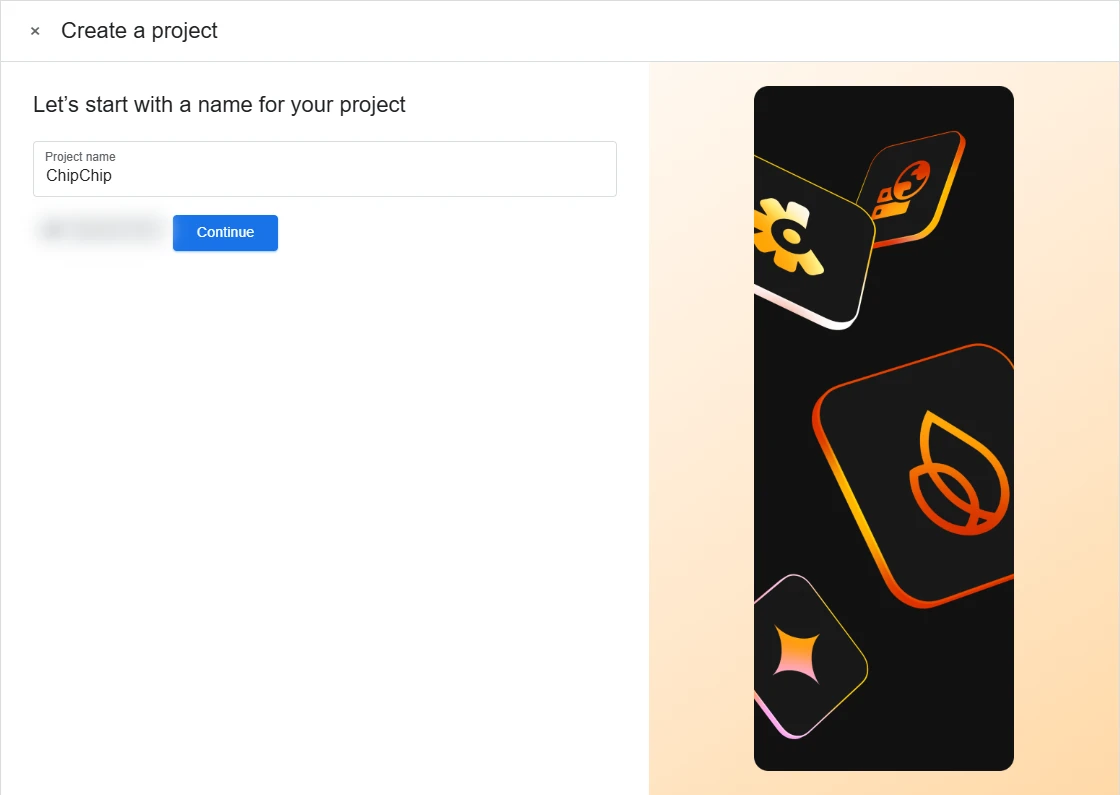
-
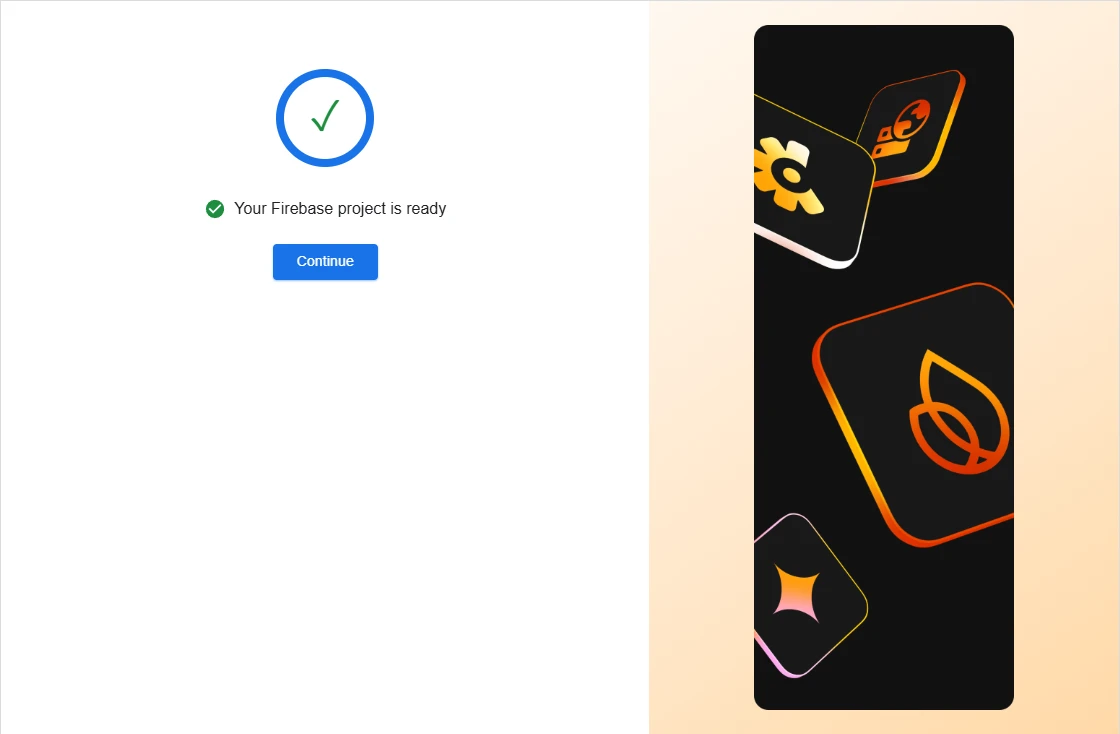
Complete the setup wizard steps until your environment is ready, then hit Continue.
-
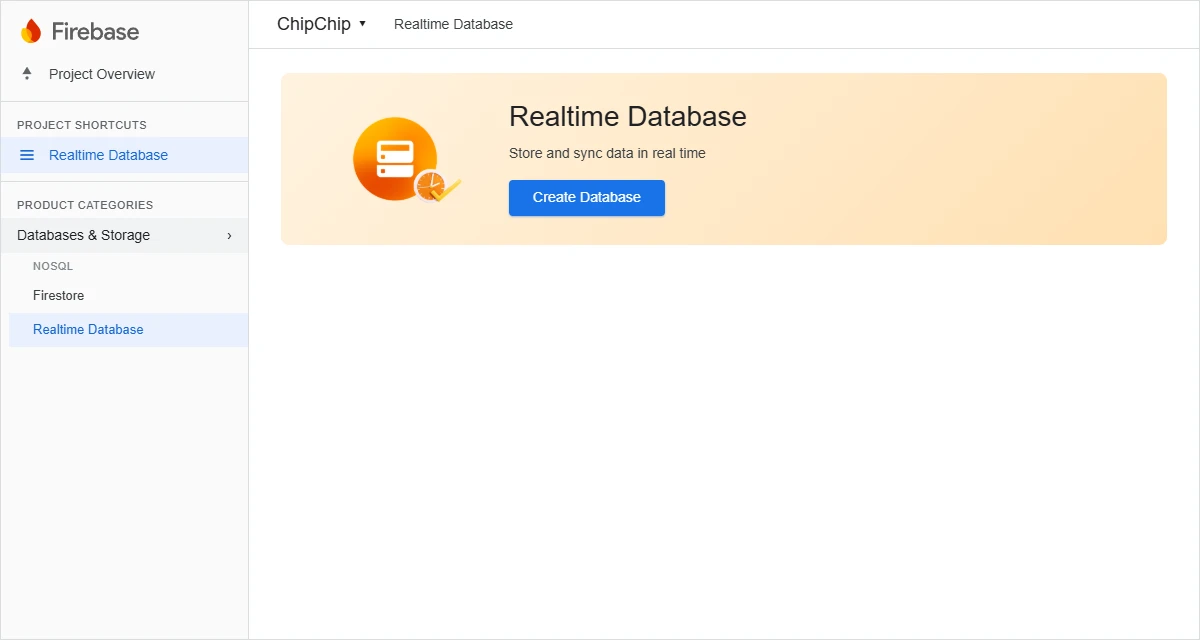
In the left navigation, open Databases & Storage, choose Realtime Database, then click Create Database.
-
Once your database has been successfully generated, navigate to the Rules tab and update both read and write permissions to
true. Click Publish.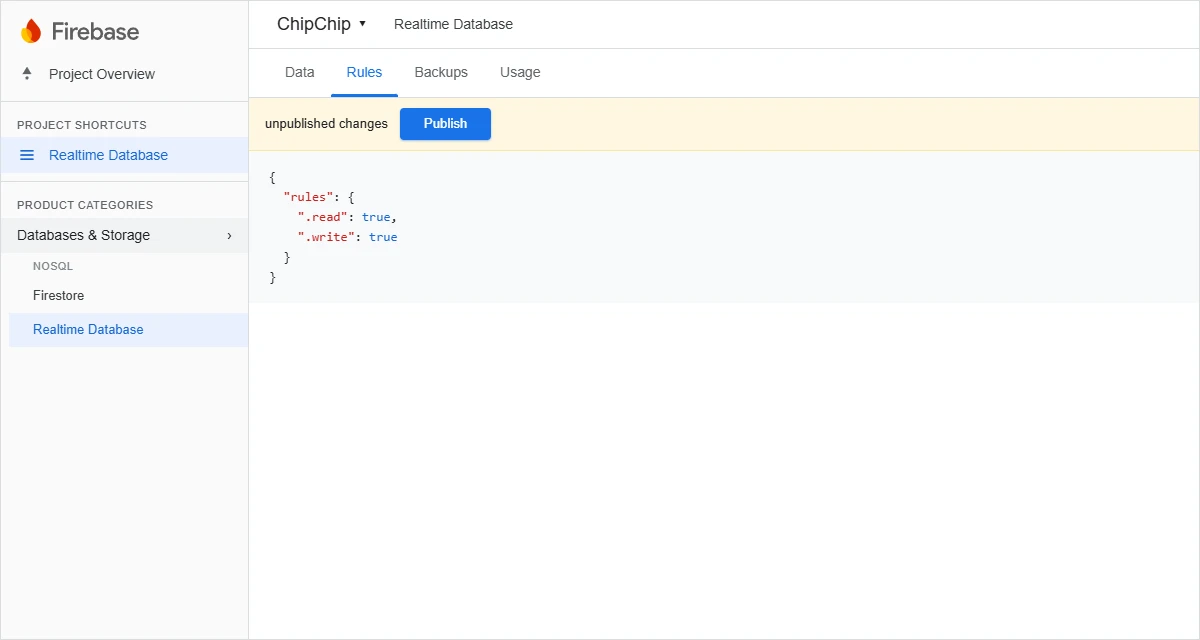
-
Your Firebase Realtime Database is now fully set up! Switch to the Data tab to grab and copy your database URL.
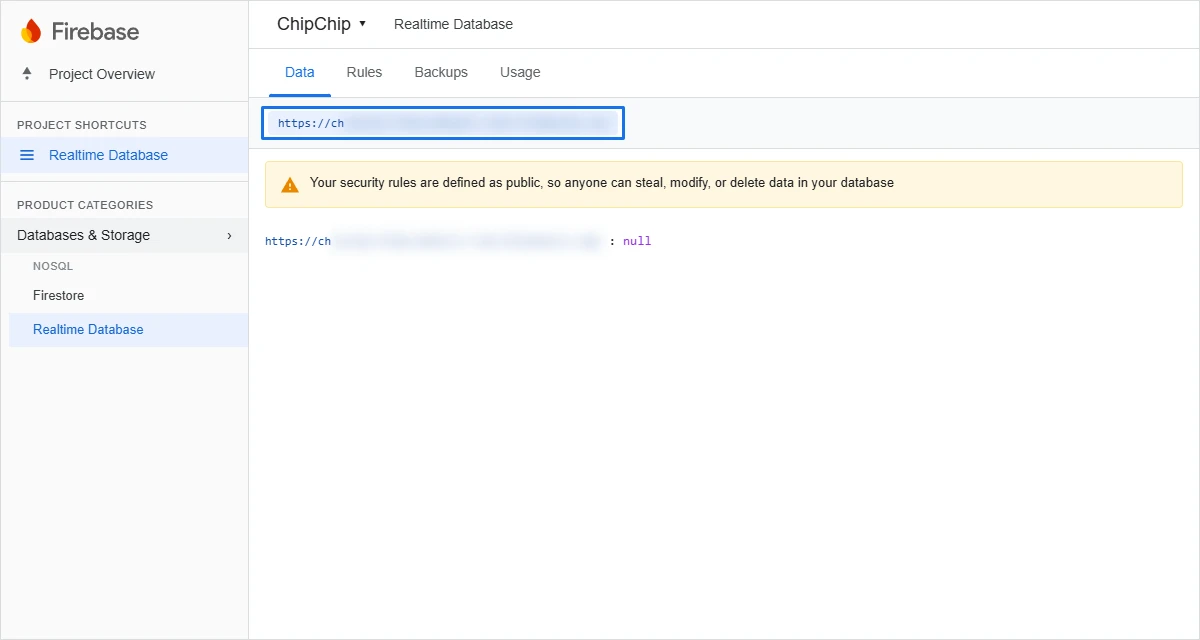
Return to the WebHook guide and paste your Realtime Database URL into ChipChip.