
Bulk Sender
ChipChip’s Bulk Sender offers advanced features like personalized messages, flexible recipient lists, custom link previews, and more.

Message Composer
- Emoji Panel
- Upload images, documents, and other files
- Link preview Attach a website preview to your link
- Message log Choose from your past messages
- Apply Bold, Italic, or Strikethrough styles
Dynamic Fields
Dynamic fields represent unique row-specific values derived from your uploaded data.
After loading your list, all columns aside from the initial mobile number column can function as dynamic fields.
To add a dynamic field, position your cursor in the text box and click the header of the desired column.
It is highly recommended to leverage dynamic fields to personalize messages and avoid monotony.
Recipient List
Import your contacts from:
Excel File
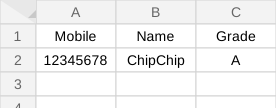
ChipChip imports data from the first worksheet of your Excel file.
Make sure the file begins with a header row and that phone numbers are in column A.
Google Sheets
After you enter the shared link for a google sheets file, you'll get the following screen:
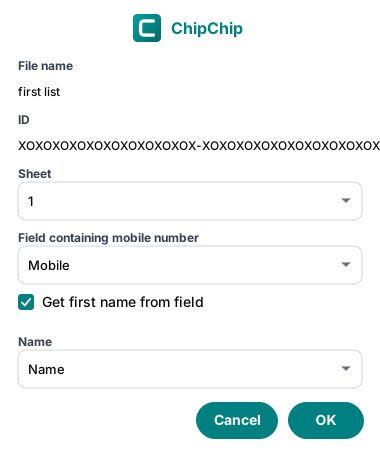
Choose the target sheet name and the column containing mobile numbers.
If your data includes a full name column, you can optionally configure ChipChip to extract just the first name.
Groups
Choose one or multiple groups to import:

- Checking the “Group Members” option will load the individual members into your list.
- Otherwise, the groups themselves will be added.
Labels (WhatsApp Business)
Works similarly to Groups.
My Lists
Open a previously saved list.
To save a list, click the save icon located in the recipient table actions.
Recipient List Actions (found in the corner of the table)
- Clear the active list
- Save the current list to “My Lists”
- Export the loaded list as an Excel file
Duplicate Recipients
ChipChip’s Bulk Sender automatically removes duplicate rows from your imported list.
Settings
Configure your message delays and archiving preferences.
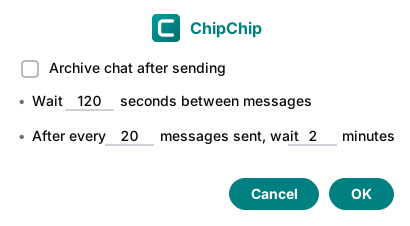
It is best to set your message intervals as high as you comfortably can.
Test Message
A test message sends a preview directly to your own chat so you can check it before launching the campaign (recommended).
If your message uses “Dynamic Fields”, the test will display data from the first recipient.
Report
Track your delivery progress and download a complete report.
Keep in mind that reports become available only after sending messages.
Refreshing your WhatsApp tab will erase the current report.
Tips
- Prevent your computer from entering “Sleep Mode” while running the Bulk Sender. Keep your WhatsApp tab open, active, and maximized during the process.
- Avoid spamming; ChipChip is designed for legitimate messaging only to people who wish to hear from you.
- Use dynamic fields to personalize texts and prevent repetitive messaging easily with ChipChip.
- Maximize the delay between messages in your settings as much as possible.
- Always follow WhatsApp’s terms of service to keep your account safe from bans.